Built in Import Wizard Templates
Contents
|
||||||||||||||||||||||||||||||||||||||||||||||||||||||||||||||||||||||||||||||||||||||||


 Can be
  Can be customized and used for a




Stoplight templates |
|
|
Cost and Schedule Stoplight
|
This format uses the Microsoft Project Name field and imports that information into a column on the left side of the Milestones schedule area. This format uses the Microsoft Project Cost Variance and Status fields and imports that information into a single column on the right side of the Milestones schedule area. Milestones converts the Microsoft Project information into stoplights. On the Milestones Professional schedule, the red circle represents task that are behind and over cost. The green circle represents task that costs and schedule are OK. the yellow circle represents task that are behind and cost is OK. The blue circle represents task that are complete and cost is OK.
|
|
|
|
|
Cost Variance 1
|
This Import Wizard choice produces: On the left, two columns 1) % complete and 2) Task Name On the right, three columns 1) Baseline Cost, 2) Actual Cost, and 3) A simple calculation column which subtracts Actual Cost from Baseline Cost. Stoplights are displayed based on whether the Actual Cost exceeds the Baseline Cost.\
|
|
|
|
|
Cost Variance 2
|
This Import Wizard choice produces: On the left, one column: Task Name On the right, three columns 1) ACWP, 2) BCWP and 3) CV with Red, Green Yellow stoplight indicators as described in the legend. No calculations are done.
|
|
|
|
|
Stoplight Indicators
|
This import format is an excellent one for viewing at-a-glance the health of a project. This is accomplished using Milestones Professional's stoplight and indicator symbols. On the Milestones Professional schedule, the cost variance information is converted to stoplight indicators:
On the Milestones Professional schedule, the status information is converted to indicators:
The following fields are brought into columns on the left side of the schedule: Name field The following fields are brought into columns on the right side of the schedule: Cost Variance and Status fields The schedule is built using these Microsoft Project fields: Start, Finish, Baseline Start and Baseline Finish.
|
|
|
|
|
Stoplight using a number field
|
This template offers an ad-hoc way to generate indicators. The Status column, which is set up with indicators, will come in EMPTY. Then, enter values 1 through 9 to generate stoplights for the schedule, and update the legend according to entries. The schedule is built using these Microsoft Project fields: Start, Finish, Baseline Start and Baseline Finish.
|
|
|
|
|
Stoplight Variety
|
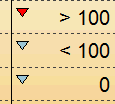
As its name implies, Stoplight Variety offers a variety of stoplights. The following fields are brought into columns on the left side of the schedule: Name, Duration, Remaining Duration, % Complete The following fields are brought into columns on the right side of the schedule: Status (with Stoplight), Baseline Cost, Actual Cost and Cost Variance (with Indicator) The schedule is built using these Microsoft Project fields: Start, Finish, Baseline Start and Baseline Finish. On the Milestones Professional schedule, the cost variance information is converted to indicators:
On the Milestones Professional schedule, the status information is converted to indicators:
|
|
|
|
|
Roadmap with Indicators
|
This format uses the Microsoft Project Name, Baseline Cost, Actual Cost, Percent Complete, and Finish Variance fields and imports that information into columns on the left side of the Milestones schedule area. From Microsoft Project, Milestones brings in the numeric percent complete with a percent complete pie symbol. From Microsoft Project Milestones looks at the numeric Finish Variance then adds an indicator.
A special column "Cost OK" is added to the left side of the Milestones schedule. Milestones looks at the Baseline Cost and Actual Cost from Microsoft Project then adds an indicator based on the cost's status. On the schedule, task names are shown as boxed symbols. The import will bring into the schedule area Start, Finish, Baseline Start and Baseline Finish.
|
|
|
|
|
Remaining Duration
|
This format uses the Microsoft Project Name field and Resource Initials and imports that information into a column on the left side of the Milestones schedule area. The schedule is built using these Microsoft Project fields: Start, Finish, Baseline Start and Baseline Finish. The Remaining Duration field is added to a column on the right of the schedule. It includes an indicator with the following constraints:
|
|
|
|
|
Variance Stoplights
|
This Import Wizard choice produces: On the left, RGY(Red-Green-Yellow) Stoplight columns for Schedule Variance, Start Variance and Finish Variance, Task Name. On the right, RGY(Red-Green-Yellow) Stoplight columns for Cost Variance On the schedule: Baseline start/finish and start/finish are shown.
|
|
|
|
|
Variance Stoplights 2
|
The far left column displays CRITICAL (shaded red) for tasks which are critical. On the right, RGY(Red-Green-Yellow) Stoplight columns for Variances: Start, Finish, Cost, Work and Duration.
|
|
|
|
|
Finish Variance
|
This format uses the Microsoft Project Name, Finish VarianceFinish Variance, Baseline Finish and finish fields and imports that information into columns. Name, and Finish VarianceFinish Variance import into columns on the left side and Baseline Finish and Finish imports into columns on the right side of the Milestones schedule. Milestones converts the Microsoft Project Finish Variance information into indicator symbols. All finish variances greater than zero is considered Ahead of Schedule and depicted by a green circle. All finish variances less than zero is considered Behind Schedule and depicted by a red circle. All finish variances equal to zero is considered On Schedule and depicted by a yellow circle.
This format will bring into the schedule area Microsoft Project fields Finish and Baseline Finish as milestones and Summary Tasks as a start date milestone, horizontal connector, end date milestone.
|
|
|
|
|
Finish Variance 2
|
This format uses the Microsoft Project Name, Finish, Baseline Finish, and Finish Variance fields and imports that information into columns on the schedule. Name, Finish and Baseline Finish fields are imported on the left side of the Milestones schedule area.
This format will bring into the schedule area Microsoft Project fields Finish and Baseline Finish as milestones, using the symbols in the first row of the toolbox.
|
|
|
|




Status templates |
|
|
Status Stoplight
|
This format uses the Microsoft Project Status field and imports that information into a column on the right side of the Milestones schedule area. Milestones converts the Microsoft Project status field information into indicator symbols:
The schedule is built using these Microsoft Project fields: Start, Finish, Baseline Start and Baseline Finish.
|
|
|
|
|
Slipping Tasks
|
This Import Wizard choice produces: "On the left, Task Name, Baseline Start, Start, Baseline Finish, Finish The schedule shows tasks which are behind schedule.
|
|
|
|
|
Unstarted Tasks
|
The Unstarted Tasks report displays all tasks which do not have an actual start date. A chart is produced showing the WBS # and Task name in the left columns. To the right of the schedule, indicators will show whether a task is critical and also whether or not the task is late. |
|
|
|
|
Status Line
|
This Import Wizard choice produces: On the left, Task Names On the right, Percent Complete Status Line is drawn to illustrate % complete (status) for each task.
|
|
|
|
|
Top Level Tasks
|
This Import Wizard choice produces: On the left: WBS and Task Name. On the right, Schedule and Cost indicators as shown in the legend, plus a %complete Pie Indicator column." x Can not be refreshed.
|
|
|
|
|
Weekly Status Report
|
Weekly Status Report, provides a simple format with easy to read information for a quick status of multiple tasks.
|
|
|
|
|
Cost Account Plan
|
This is a common defense industry format which can be easily customized to meet reporting requirements. Column on the left: 1) Name, Finish, Baseline Finish, Finish Variance Columns on the right: BCWS, BCWP from Microsoft Project Graph: Timescaled PV and EV (BCWS and BCWP) from Microsoft Project
|
|
|
|
|
Project Status Report
|
This Import Wizard choice produces: Left Columns - WBS, Task Name Right Columns - Duration, Remaining Duration, Remaining Duration%, Cost, Remaining Cost, Remaining Cost %, Resource Names. Baseline start/finish and start/finish are shown
|
|
|
|


Dashboard templates |
|
|
Project Dashboard
|
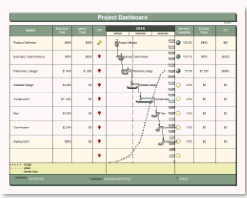
On the schedule: baseline and normal start/finish bars. Also, on the schedule, a graph representing Budget, Actual Cost and Earned Value (BCWP)." In the columns: - name, baseline and actual cost, percent complete, BCWP, cost variance (CV) and Cost Performance Index (CPI). An indicator for CPI displays Red for CPI less than 1, Green for CPI 1.3 or higher and Yellow for CPI between 1 and 1.3" Note:
|
|
|
|
|
Project Funding Dashboard
|
On the schedule: baseline and normal start/finish bars. On the graph below schedule: budget vs/actual cost for each month." In the columns: a stoplight displays Red-Green-Yellow stoplight indicator based on the Microsoft Project Remaining Cost field. If Remaining Cost is greater than zero, a green indicator is shown. If Remaining Cost is zero, the indicator is yellow. If Remaining Cost is less than zero, a red indicator is shown meaning funds are exhausted.
|
|
|
|
|
Dashboard Chart 4
|
In the schedule: baseline and normal start/finish bars. Also, on the schedule, a graph representing Budget, Actual Cost and Earned Value (BCWP)." In the columns: - name, baseline and actual cost, Cost Performance Index (CPI), percent complete, earned value, cost variance (CV). An indicator for CPI displays Red for CPI less than 1, Green for CPI 1.3 or higher and Yellow for CPI between 1 and 1.3" From Microsoft Project Milestones brings in the numeric percent complete then adds a percent complete pie symbol. Note: Earned Value comes directly from Microsoft Project. However, instead of the timescaled values, the values are distributed across each task using Microsoft Project values for each task.
|
|
|
|
|
|
Earned value calculation for this chart: Milestones Earned Value On the schedule: baseline start/finish and start/finish. A graph showing PV, EV, BAC and AC. Baseline Cost, Actual Cost and Percent Complete are from Microsoft Project. All other earned value information on this graph is calculated by Milestones Professional. " In the columns On the right: Cost, Remaining Cost, Actual Cost and Resource Initials" The Microsoft Project start+finish and baseline start+finish are imported"
|
|
|
|
|
Earned Value Dashboard
|
On the schedule: baseline and normal start/finish bars. Also, on the schedule, a graph representing Budget, Actual Cost, Earned Value (BCWP) and Planned Value (PV or BCWS) In the columns: - Schedule Variance and Cost Variance columns are shaded based on the values. Green for value > 0, Red for value < 0 and Yellow for value = 0. CPI displays an red indicator if the CPI is less than 1, Yellow if the CPI is between 1 and 1.3 and Green if the CPI is greater than 1.3." Earned value for this schedule is calculated by Milestones Professional using Baseline Cost, Percent Complete and Actual Cost from Microsoft Project.
|
|
|
|
|
Dashboard Summary Chart
|
In the schedule: Baseline and Normal Start/Finish bars. A graph representing Budget and Actual Cost. In the columns: On Time indicator (Milestones calculation column baseline end minus end date), Cost OK indicator (Milestones calculation column baseline minus costs to date), Percent Complete, Who (Microsoft, Baseline Cost, Cost to Date (Microsoft actual cost)
|
|
|
|




Milestone templates |
|
|
Date Comparison
|
This format uses the Microsoft Project Name field and imports that information into a column on the left side of the Milestones schedule area. This format will bring into the schedule area Microsoft Project fields Start, Finish, Baseline Start, Baseline Finish, Actual Start, Actual Finish, and Deadline along with Summary Tasks. Start and Finish date will be depicted in the Milestones schedule area as a symbols. They will be drawn using symbols in the second row of the toolbox. Baseline Start and Baseline Finish will be depicted in the Milestones schedule area as a symbols. They will be drawn using the symbols in the 3rd row of the toolbox. Actual Start and Actual Finish will be depicted in the Milestones schedule area as a symbols. They will be drawn using the symbols in the 4th row of the toolbox. Summary bars use the first row of the toolbox.
|
|
|
|
|
Finish Dates
|
The Microsoft Project Name field is imported into a column on the left side of the Milestones schedule area. This format will bring into the schedule area Microsoft Project fields Finish milestones at the lowest level and Summary tasks based on lower level tasks. Finish milestones are shown using the first symbol on row 2 of the toolbox. Summary bars use the symbols and bars found in the first row of the toolbox. Both symbols are "null" or blank symbols (type 28). Any task marked Critical in Microsoft Project will be colored red on the resulting Milestones Professional schedule. The right most symbol on row 2 of the toolbox is used for this purpose.
|
|
|
|
|
Finish Dates Rolled Up
|
This format uses the Microsoft Project Name, Finish and Percent Complete fields and imports that information into a columns. Name and Finish import into columns on the left side and Percent Complete imports into columns on the right side of the Milestones schedule. This format will bring into the schedule area Microsoft Project fields Finish milestones at the lowest level and Summary tasks based on lower level tasks. Finish date milestones roll up to the summary bars. Finish milestones use symbol 3 in the toolbox. Summary bars use symbol 1 and symbol 2 along with horizontal bar 1 in the toolbox. Both symbols are null symbols. Any task marked Critical in Microsoft Project will be colored red on the resulting Milestones Professional schedule. Symbol 4 in the toolbox is used for critical milestones.
|
|
|
|
|
Finish Dates Plus Status
|
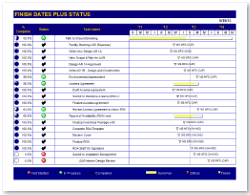
This format uses the Microsoft Project Name and Percent Complete and imports that information into separate columns on the left side of the Milestones schedule area. From Microsoft Project, Milestones brings in the numeric percent complete with a percent complete pie symbol. On the Milestones Professional schedule, the status column uses the information from the %complete column and converts it to indicators. Red circle represents task that have not started. Green circle represents task that are in progress. Black check mark represents task that are complete. This format will bring into the schedule area Microsoft Project field Finish milestones at the lowest level and Summary tasks based on lower level tasks. Finish milestones use symbol 3 in the toolbox. Summary bars use symbol 1 and symbol 2 along with horizontal bar 1 in the toolbox. Both symbols are null symbols. Any task marked Critical in Microsoft Project will be colored red on the resulting Milestones Professional schedule. Symbol 4 in the toolbox is used for critical milestones.
|
|
|
|
|
Finish Variance
|
This format uses the Microsoft Project Name, Finish VarianceFinish Variance, Baseline Finish and finish fields and imports that information into columns. Name, and Finish VarianceFinish Variance import into columns on the left side and Baseline Finish and Finish imports into columns on the right side of the Milestones schedule. Milestones converts the Microsoft Project Finish Variance information into indicator symbols. All finish variances greater than zero is considered Ahead of Schedule and depicted by a green circle. All finish variances less than zero is considered Behind Schedule and depicted by a red circle. All finish variances equal to zero is considered On Schedule and depicted by a yellow circle.
This format will bring into the schedule area Microsoft Project fields Finish and Baseline Finish as milestones and Summary Tasks as a start date milestone, horizontal connector, end date milestone.
|
|
|
|
|
Finish Variance 2
|
This format uses the Microsoft Project Name, Finish, Baseline Finish, and Finish Variance fields and imports that information into columns on the schedule. Name, Finish and Baseline Finish fields are imported on the left side of the Milestones schedule area.
This format will bring into the schedule area Microsoft Project fields Finish and Baseline Finish as milestones, using the symbols in the first row of the toolbox.
|
|
|
|
|
Project Report
|
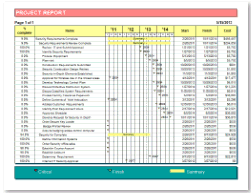
This format uses the Microsoft Project Percent Complete, Name, Start, Finish and Cost fields and imports that information into a columns. Percent Complete and Name import into columns on the left side and Start, Finish and Cost import into columns on the right side of the Milestones schedule. This format will bring into the schedule area Microsoft Project fields Finish milestones at the lowest level and Summary tasks based on lower level tasks. Finish milestones use symbol 3 in the toolbox. Summary bars use symbol 1 and symbol 2 along with horizontal bar 1 in the toolbox. Both symbols are null symbols. Any task marked Critical in Microsoft Project will be colored red on the resulting Milestones Professional schedule. Symbol 4 in the toolbox is used for critical milestones.
|
|
|
|
|
Scatter Chart
|
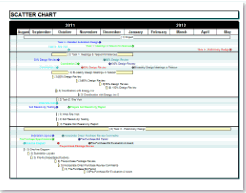
This is a summary format that brings in summary bar start and finish using the symbols and bars on row 8 of the toolbox. If the summary bars have lower level task, the task come in as finish milestones. During the import choose how many milestones to see per task row. Also, pick from several Microsoft Project fields to have symbol text associated with the milestones. Milestones colors the milestones symbol and its accompanying text the same color. Symbols 1 and 2 of the toolbox are used for the milestones. The color used for each milestone is an override ride
|
|
|
|
|
Zero Duration Tasks
|
his format uses the Microsoft Project Name, WBS, and Finish fields and imports that information into a columns. Name and WBS import into columns on the left side and Finish import into columns on the right side of the Milestones schedule. This format will bring into the schedule area Microsoft Project tasks marked as milestones (milestones have zero duration). The milestone tasks will be depicted in the Milestones schedule area as a symbol. It will be drawn using the 3rd symbol in the toolbox.
|
|
|
|






 T
T
Resource templates |
|
|
|
|
| Resource Summary
|
This format uses the Microsoft Project Resource, Cost and Work fields importing that information into columns on the left and right sides of the Milestones schedule area. The import will brings into the schedule area a summary of the resources projects by showing a start symbol on the first day of the resources' projects, connecting with a horizontal bar to an end symbol depicting the last day of the resources' projects. The import uses the Cost and Work columns to set-up Type 3 ValueSets: Allocate Column Values Across Timeline. It creates a DataGraph at the bottom of the schedule showing Cost and Work. See Making changes to DataGraphs x Can not be refreshed. x Cannot be customized and used for a custom template |
|
|
|
| Tasks By Resource
|
This format uses the Microsoft Project WBS, Name, Cost and Work fields importing that information into columns on the left and right sides of the Milestones schedule area. Each resource's task are grouped together. The import will brings into the schedule area each task showing a start symbol on the first day of the task connecting with a horizontal bar to an end symbol depicting the last day of the task. In the schedule area Milestones Professional draws a summary bar for each resource based on the Resources' tasks. The import uses the Cost and Work columns to set-up Type 3 ValueSets: Allocate Column Values Across Timeline. A bar DataGraph is creating, showing Cost and Work. x Can not be refreshed. x Cannot be customized and used for a custom template |
|
|
|
| Tasks By Resource 2
|
This format uses the Microsoft Project Name, Resource, Work, Actual Work and Percent Complete fields importing that information into columns on the left and right sides of the Milestones schedule area. Resource brings into the schueld the task and under each task the resource responsible for that task. The import will brings into the schedule area for each resource the start date and end date of its work for that task. In the schedule area Milestones Professional draws a summary bar reflecting all the tasks' resource work. x Can not be refreshed. x Cannot be customized and used for a custom template |
|
|
|
| Overallocated
|
This format uses the Microsoft Project Name, Peak and Work fields importing that information into columns on the left and right sides of the Milestones schedule area. The import will brings into the schedule area any resource that is over allocated. In the schedule area Milestones Professional draws a summary bar reflecting all the resource's tasks. To view the detail for a particular resource on this chart, right-click the resource name and choose Expand Selected Task Row. All the resource's tasks will be listed showing a start symbol on the first day of the task connecting with a horizontal bar to an end symbol depicting the last day of the task. Allocate Column Values Across Timeline x Can not be refreshed. x Cannot be customized and used for a custom template |
|
|
|
| Tasks by resource detailed
|
This format uses the Microsoft Project Task ID, Name, Duration, Start, Finish, Percent Complete Cost and Work fields importing that information into columns on the left and right sides of the Milestones schedule area. The import will brings into the schedule area under the each of the resources their tasks showing a start symbol on the first day of the task connecting with a horizontal bar to an end symbol depicting the last day of the task. In the schedule area Milestones Professional draws a summary bar reflecting all the resource's tasks. The import uses the Cost and Work columns to set-up Type 3 ValueSets: Allocate Column Values Across Timeline. A bar DataGraph is added at the bottom of the schedule showing Cost and Work. See Making Changes to DataGraphs. x Can not be refreshed. x Cannot be customized and used for a custom template |
|
|
|
| Unstarted Tasks By Resource
|
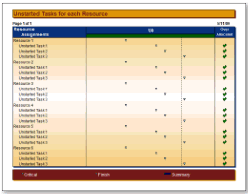
This Import Wizard choice produces: A list of un-started tasks for each resources, indicating (with a check) which resources are over allocated.
x Can not be refreshed. x Cannot be customized and used for a custom template |
|
|
|
| Single Resource
|
During the import process the wizard offers a list of resources to select. This format uses the Microsoft Project WBS, Name, Cost and Work fields and imports that information into columns on the left and right sides of the Milestones schedule area. The import brings into the schedule area each of the chosen resource tasks showing a start symbol on the first day of the task connecting with a horizontal bar to an end symbol depicting the last day of the task. In the schedule area Milestones Professional draws a summary bar reflecting all the resource's tasks. The import uses the Cost and Work columns to set-up Type 3 ValueSets: Allocate Column Values Across Timeline. A bar DataGraph is created showing Cost and Work. See Making Changes to DataGraphs.
x Can not be refreshed. x Cannot be customized and used for a custom template
|
|
|
|
| Work variance
|
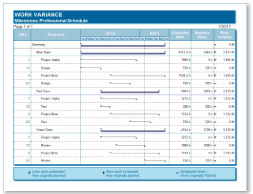
This format uses the Microsoft Project WBS, Resources, Scheduled Work, Baseline Work, and Work Variance fields importing that information into columns on the left and right sides of the Milestones schedule area. Milestones converts the Microsoft Project Work Variance information into indicator symbols.
The import will brings into the schedule area each resources' task showing a start symbol on the first day of the task connecting with a horizontal bar to an end symbol depicting the last day of the task.
|
|
|
|






Summary templates |
|
|
|
|
|
Presentation Timeline
|
This format uses the Microsoft Project Name field and imports that information into a column on the left side of the Milestones schedule area. The import will bring into the schedule area Summary tasks Start and Finish and rolled up finish dates of their respective sub-tasks. At the lowest sub-task level Start, Finish and Milestones.
|
|
|
|
|
Presentation Timeline Angled Text
 
|
This format uses the Microsoft Project Name field and imports that information into a column on the left side of the Milestones schedule area. The import will bring into the schedule area Summary tasks Start and Finish and rolled up finish dates of their respective sub-tasks. At the lowest sub-task level Start, Finish and Milestones. Text associated with the Finish date will come into the Milestones schedule at an angle on the summary bar.
|
|
|
|
| Compact Gantt
|
This format uses the Microsoft Project Unique ID and Name fields and imports that information into columns on the left side of the Milestones schedule area. The import will bring into the schedule area Summary tasks Start, Finish, Baseline Start, and Baseline Finish. Lower level Start, Finish, Baseline Start, and Baseline Finish.
|
|
|
|
|
Cost Summary With Graph
|
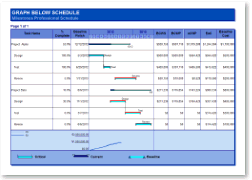
This format uses the Microsoft Project ID, Name, Baseline Cost, Cost and Resource Initials fields and imports that information into columns on the Milestones schedule. ID and Name are imported on the left side of the Milestones schedule area. Baseline Cost, Cost and Resource Initials are imported on the right side of the Milestones schedule area. The schedule is built using these Microsoft Project fields: Start, Finish, Baseline Start and Baseline Finish. The import uses the Cost and Baseline Cost columns to set-up Type 3 ValueSets: Allocate Column Values Across Timeline. Creating a bar Datagraph at the bottom of the schedule comparing Cost and Baseline Cost. The alignment for Value Set is Weekly. The graphic properties of the ValueSets and alignment can be changed using the Setup ValueSets options found on the Tools tab in Milestones. The properties of the Datagraph can be changed using the Setup Datagraph options found on the Tools tab in Milestones.
|
|
|
|
|
Compact Sequential Tasks
|
This format uses the Microsoft Project Name field and imports that information into a column on the left side of the Milestones schedule area. Milestones brings into the schedule area start and finish dates using symbol 1 and 2 in the toolbox and horizontal bar 1. Any symbol text information is associated with the start symbol and is centered on horizontal bar. The lower level information is displayed on a summary row.
|
|
|
|
|
Condensed Finish Dates
|
This format uses the Microsoft Project Name field and imports that information into a column on the left side of the Milestones schedule area. Milestones brings into the schedule area the start and finish dates connected with a horizontal bar. The finish dates are copied up onto the summary row in a scatter pattern to prevent overlapping as much as possible. Any Microsoft Project tasks that are critical will show red finish dates on the summary rows.
|
|
|
|
|
Space Saver
|
The purpose of this format is to display as many tasks as possible on as few rows as possible without collision. Schedules with many dates very close together may collide, still. Increasing the width of the schedule may help spread-out the symbols. This format uses the Microsoft Project Name field and imports that information into a column on the left side of the Milestones schedule area. The import will bring into the schedule area Start date, Finish Date and Milestones.
|
|
|
|
|
Top Level With Cost Plus Work
|
This import format is similar to Basic Gantt, with the addition of Cost and Work. The schedule is built using these Microsoft Project fields: Start, Finish, Baseline Start and Baseline Finish. The following fields are brought into columns on the left side of the schedule: ID and Name The following fields are brought into columns on the right side of the schedule: % Complete, Cost and Work
|
|
Scatter Chart
|
This is a summary format that brings in summary bar start and finish using the symbols and bars on row 8 of the toolbox. During the import, choose how many milestones to see per task row. Also, pick from several Microsoft Project fields to have symbol text associated with the milestones. Milestones colors the milestones symbol and its accompanying text the same color. Symbols 1 and 2 of the toolbox are used for the milestones. The color used for each milestone is an override.
|
|
|
|


Special templates |
|
|
Work Remaining Vs Money Remaining
|
In the schedule: Baseline Start/Finish bars and normal Start/Finish bars. In the columns: Name, Indicator (Milestones calculation column % Cost Remaining minus % Work Remaining), % Cost Remaining (Milestones calculation column Remaining Cost divided by Cost), % Work Remaining (Milestones calculation column Remaining Work divided by Work) x Can not be refreshed. x Cannot be customized and used for a custom template
|
|
|
|
|
Percent Complete Bar Graph
|
This format shows the percent complete for each task as a bar. x Can not be refreshed. x Cannot be customized and used for a custom template
|
|
|
|


Related Topics